

Key Takeaways
- Monitor placement at eye level reduces neck strain and supports longer, more comfortable work sessions.
- A wired ethernet connection is generally more reliable than Wi-Fi for video calls and large file transfers.
- Cable management and thoughtful desk layout improve both productivity and safety in a home office.
- A battery backup (UPS) protects against unexpected power outages that can disrupt work or damage equipment.
- Separating work devices from personal or household networks can improve both speed and security.
Start With Your Display and Ergonomics
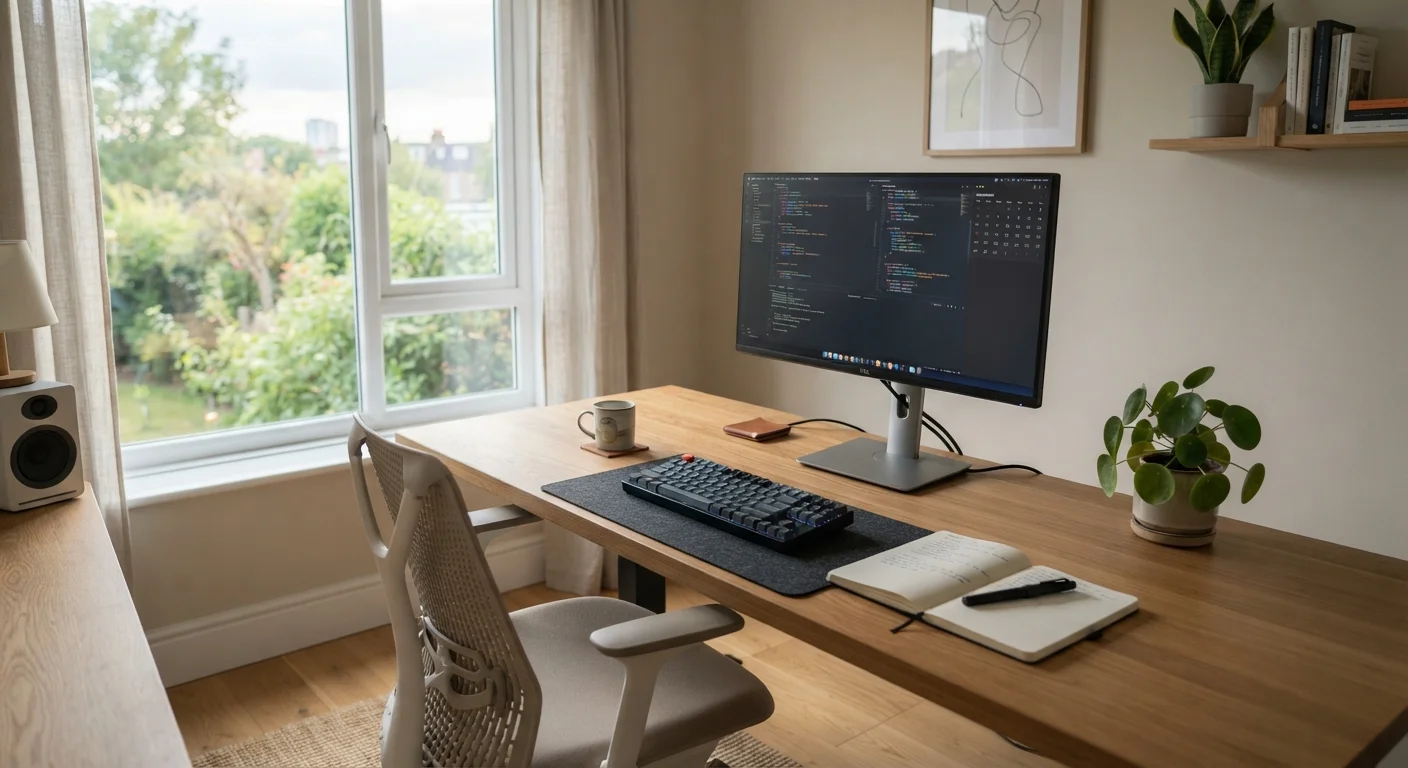
The monitor is your primary interface with work, and how it's positioned has real consequences for comfort and focus. Place the top of your screen at or slightly below eye level, with the display roughly an arm's length away. This reduces the neck flexion that contributes to tension and fatigue during long sessions. For more on building sustainable desk habits, see movement habits for desk workers.
If desk space is limited, a monitor arm frees up surface area and lets you reposition quickly. A second display - even a smaller one used vertically for documents or chat - can meaningfully reduce the time spent switching between windows without requiring a larger desk footprint.
Check Ambient Lighting Before Your Next Video Call
Bright light behind you (like a window) creates a silhouette effect that makes you hard to see on camera. Position a light source in front of you - facing your face - for a clearer, more professional appearance. A simple desk lamp pointed toward you can make a noticeable difference without any special equipment.
Connectivity: The Foundation of a Reliable Setup
Nothing disrupts a workday faster than an unstable internet connection. For home offices, the choice between wired and wireless connectivity deserves serious thought. Ethernet - a physical cable running from your router to your computer - delivers more consistent speeds and lower latency than Wi-Fi, especially when other household devices are active. Our guide to wired vs. wireless home networks walks through the practical trade-offs in detail.
If running a cable isn't feasible, position your Wi-Fi router as close to your workspace as possible - or consider a mesh network node in the same room. If you're still sorting out what hardware you have and what each piece does, this primer on routers and home tech is a useful starting point.
~70%
Remote workers report connectivity as top frustration
Surveys on remote work challenges consistently identify poor or unreliable internet connectivity as one of the leading sources of daily frustration for home-based workers.
5 GHz
Wi-Fi band with less household interference
The 5GHz Wi-Fi band typically offers faster speeds and less congestion than 2.4GHz in homes with many connected devices, though range is shorter.
Core Practices for Performance and Reliability
Beyond connectivity, a few deliberate choices can significantly affect how well your setup holds up day to day. These practices address common pain points - dropped video calls, tangled cables, unexpected shutdowns - before they become recurring problems.
Use a UPS (uninterruptible power supply) to protect against outages
A sudden power cut can corrupt open files, interrupt video calls mid-presentation, and - over time - stress storage drives. A UPS gives you several minutes of battery-backed power to save work and shut down gracefully. It also conditions the power supply, protecting against voltage spikes.
Separate your work devices onto a dedicated Wi-Fi band or VLAN
Household streaming, gaming, and smart devices compete for bandwidth on shared networks. Isolating your work machine reduces that congestion and can also improve security by limiting which devices can communicate with each other.
Position your webcam at eye level for video calls
A camera mounted below eye level creates an unflattering upward angle and signals inattention. Eye-level placement produces a more natural appearance and helps maintain non-verbal communication norms during remote meetings.
Use a dedicated USB hub or docking station instead of plugging directly into a laptop
Repeatedly plugging and unplugging cables stresses laptop ports, which are expensive to repair. A docking station or powered USB hub centralizes connections and lets you plug in once - keyboard, monitor, audio, and external drives - then connect with a single cable.
Label cables and route them intentionally from the start
Unmanaged cables make it hard to identify what's connected where, increase the risk of accidentally disconnecting critical devices, and collect dust that can affect airflow around equipment. Planning cable routes during setup is far easier than untangling them later.
Quick Wins You Can Implement Today
Not every improvement requires a full office overhaul. Several high-impact adjustments take under an hour and cost little to nothing. Start here if you want immediate results.
For a broader look at organizing your workspace within the context of your whole home, the room-by-room home organization audit offers a practical framework. And once your setup is functional, cable management strategies can help keep it that way.
Humidity and Electronics Don't Mix Well
If your home office is in a basement or a room with high humidity, it's worth monitoring air moisture levels. Excess humidity can accelerate corrosion on connectors and circuit boards over time. If you're weighing whole-home air treatment options, this overview of whole-home humidifiers covers the trade-offs involved. Target indoor humidity between 30-50% for both equipment and personal comfort.