

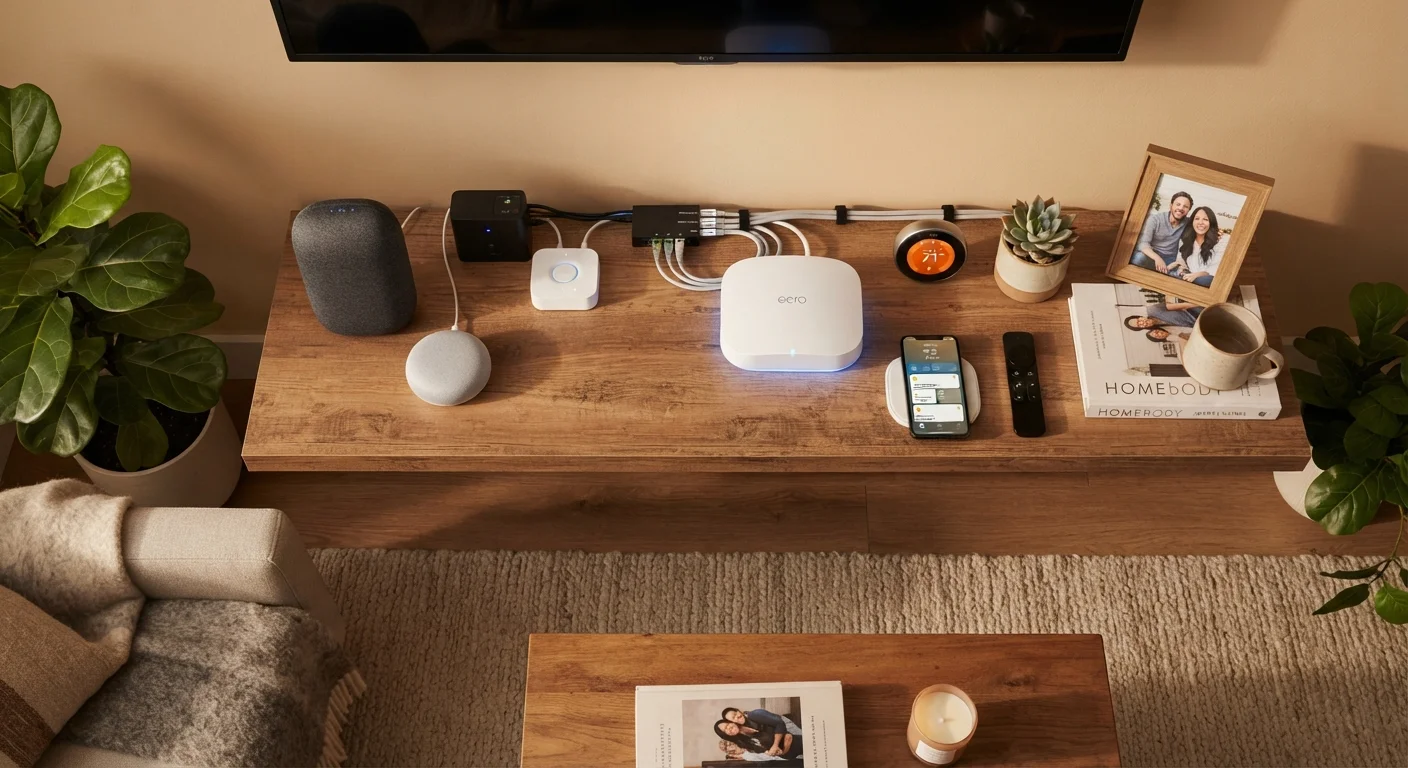
Key Takeaways
- Your router is the central device that connects your home to the internet and manages local device traffic.
- Hubs, switches, and access points are distinct devices with different roles - not interchangeable terms.
- Smart devices use Wi-Fi, Zigbee, or Z-Wave to communicate, and some require a dedicated hub to function.
- Placement and basic security settings have a major impact on your network's reliability and safety.
- Starting simple and expanding gradually is better than building a complex setup all at once.
Start here
What a Router Actually Does
Next
Hubs, Switches, and Access Points: What's the Difference?
Then
Smart Devices and How They Connect
Ready to set up
Setting Up Your Home Network: Where to Start
Final check
Common Beginner Mistakes to Avoid
What a Router Actually Does
A router is the device that connects your home to the internet and manages the flow of data between all your devices. Think of it as a traffic director: your internet service provider (ISP) delivers a single internet connection to your home, and the router splits that connection so every device - phones, laptops, smart TVs - can use it simultaneously.
Routers also assign each device a unique local address (called an IP address) so data packets know where to go. Most routers broadcast a Wi-Fi signal wirelessly and also include ethernet ports for wired connections, which are generally faster and more stable.
Router
A device that connects your home network to the internet and directs data traffic between all your connected devices.
IP Address
A unique number assigned to each device on a network so data knows which device to reach.
SSID
The name of your Wi-Fi network - the label you see when searching for available networks on a phone or laptop.
Zigbee
A low-power wireless communication protocol used by many smart home devices; typically requires a hub to connect to your main network.
Firmware
Built-in software that controls a hardware device like a router or smart bulb; keeping it updated helps maintain security.
Mesh Network
A Wi-Fi system using multiple access points placed around a home to provide consistent coverage without dead zones.
If you want a deeper reference for terms you'll encounter during setup, the Home Tech Glossary is a helpful companion resource.
Hubs, Switches, and Access Points: What's the Difference?
These three terms get mixed up constantly, but they serve different roles:
- Hub: An older, basic device that connects multiple wired devices together. It sends all incoming data to every connected device, which is inefficient. Modern networks rarely use true hubs anymore.
- Switch: A smarter version of a hub. It directs data only to the device it's meant for, making networks faster and less congested. If you need to connect several wired devices (like a desktop PC, a gaming console, and a TV) in one room, a switch is what you want.
- Access Point (AP): A device that extends your Wi-Fi coverage to areas your router can't reach. It connects to your router via ethernet and creates an additional wireless broadcast point.
In smart home contexts, a smart hub is something different again - it's a controller that allows devices using protocols like Zigbee or Z-Wave to communicate with each other and with your phone. For a deeper look at whether centralizing your setup around one is right for you, see the pros and cons of smart hubs.
Smart Devices and How They Connect
Smart devices - bulbs, plugs, thermostats, doorbells - typically connect to your network using one of three methods:
- Wi-Fi: Connects directly to your router. Convenient, but adds load to your network if you have many devices.
- Zigbee or Z-Wave: Low-power wireless protocols designed specifically for smart home devices. They form a mesh between devices and generally require a dedicated hub or gateway to link to your home network.
- Bluetooth: Short-range and often used for initial setup or for devices that stay close to a phone or speaker.
Group Smart Devices on a Separate Network
Most modern routers let you create a guest network or a dedicated IoT network. Putting smart devices on their own network keeps them isolated from your main computers and phones, reducing security risk. It also helps keep your primary network from getting congested if you add many smart devices over time.
Understanding how your smart devices communicate helps you plan which devices work together and whether you'll need extra hardware. The Gadgets Explained hub covers many of these technologies in plain language.
Setting Up Your Home Network: Where to Start
A good home network starts with router placement. Position your router as centrally as possible - ideally in an open area, elevated, and away from thick walls, microwaves, and other electronics that cause interference. This alone can dramatically improve coverage.
Once connected to your ISP's service, log in to your router's settings page (usually via a web browser using an address like 192.168.1.1) to:
- Set a strong, unique Wi-Fi password
- Rename your network (SSID) to something that doesn't identify your address or ISP
- Enable WPA3 or WPA2 encryption if available
- Create a separate guest network for smart devices or visitors
After your network is stable, tackle cable organization before things get complicated. The guide to cable management offers practical approaches that don't require professional tools. If you're also setting up a new smartphone as part of this process, our smartphone starter guide can walk you through the basics.
Common Beginner Mistakes to Avoid
Even simple setups run into avoidable problems. Here are the most common missteps:
- Using the default router password: Default credentials are publicly documented and easy for others to exploit. Change them immediately during setup.
- Placing the router in a corner or closet: Walls and distance weaken signals. A central, open location makes a noticeable difference.
- Buying incompatible smart devices: Not all smart devices work with all ecosystems. Check whether a device supports your existing platform (such as Matter, Apple Home, or Google Home) before purchasing.
- Ignoring firmware updates: Router and smart device manufacturers release updates to patch security vulnerabilities. Enable automatic updates where possible.
- Overloading one network: Putting every smart device on your main Wi-Fi can slow it down. A dedicated IoT network or guest network keeps things running smoothly.
Don't Skip Router Security Steps
Leaving your router on default settings - especially the default admin password - is one of the most common and avoidable home network security mistakes. Anyone who accesses your router's admin panel can change settings, monitor traffic, or lock you out. Take five minutes during setup to change the admin credentials and enable encryption.
Building your home tech setup gradually - starting with a solid router, then adding devices as needed - is far easier to manage than trying to configure everything at once. For more on how connected devices work once your network is running, explore the Home Essentials hub for everyday guidance.