

Key Takeaways
- Your router assigns a private IP address to every device that joins your network via DHCP.
- It translates those private addresses to your single public IP using a process called NAT.
- The router inspects every packet of data and decides the fastest, correct path for it.
- Basic firewall protection runs continuously, filtering out unsolicited incoming traffic.
- Firmware updates keep the router secure and functioning properly over time.
Wi-Fi Router
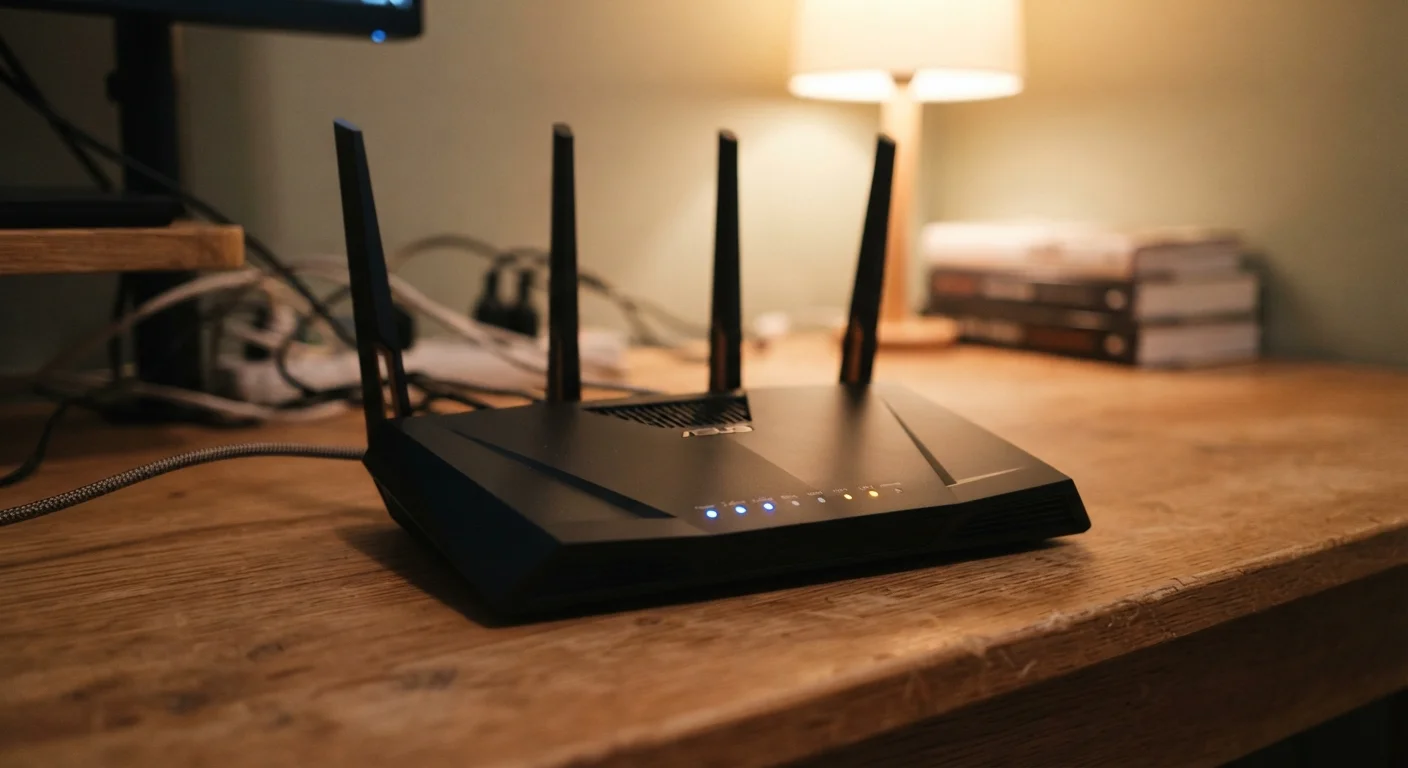
A Wi-Fi router is a device that connects your home network to the internet and manages communication between all your connected devices. It acts as a traffic director - deciding where data packets go, assigning each device its own local address, and enforcing basic network security. Without it, your devices couldn't talk to each other or reach the web.
Most home routers combine two distinct functions: routing (moving data between networks) and switching/access-point duties (managing local wired and wireless connections). ISP-supplied gateway devices often fold in a modem as well.
The Traffic Director in Your Home
Your router sits quietly on a shelf, blinking away, and most people never give it a second thought - until the internet goes down. But that small box is running non-stop, making thousands of micro-decisions every minute to keep your household connected.
At its core, a router's job is to move data between two networks: your home's local network (your phones, laptops, smart TVs) and the wider internet. Every time you stream a video or send an email, data travels in small chunks called packets. The router reads the destination address on each packet and decides where to send it - inward to a device on your network, or outward toward a website's server.
Think of it like a postal sorting facility running inside your walls. It reads every address, every second, and routes each piece of mail to the right destination without you lifting a finger.
~25
Average connected devices per U.S. household
According to Deloitte's 2023 Connectivity and Mobile Trends survey, the average American home has around 25 connected devices - all managed by a single router.
Billions
Packets routed per day in a typical home
Streaming HD video alone can generate tens of millions of data packets per hour, meaning an active household router processes an enormous volume of traffic daily.
~2-5 years
Typical consumer router lifespan before performance decline
Network hardware experts generally suggest revisiting router hardware every few years, as firmware support and wireless standards evolve significantly in that window.
IP Addresses, DHCP, and NAT - Without the Jargon
Two behind-the-scenes processes explain a lot about how your router keeps things organized: DHCP and NAT.
DHCP (Dynamic Host Configuration Protocol) is how your router hands out addresses. When your phone connects to Wi-Fi, the router automatically assigns it a private IP address - a unique identifier on your local network, like a seat number at a dinner table. Every device gets its own number so traffic doesn't get confused.
But here's the thing: your ISP gives your household just one public IP address - the address the internet sees. So how do a dozen devices share it? That's where NAT (Network Address Translation) comes in. Your router keeps an internal table that maps each device's private address to that single public one. When a packet comes back from Netflix, the router checks its table and sends it to the right device - your TV, not your laptop.
See our guide to common Wi-Fi speed myths for more on how address management affects perceived performance.
Your Router vs. Your Modem
These two devices are often confused because many ISPs supply them as a single unit. The modem handles the physical connection to your ISP's infrastructure; the router distributes that connection within your home. If you have a separate box for each, the modem typically connects to the router via an Ethernet cable. If you're setting one up for the first time, Setting Up a Router for the First Time walks through the process clearly.
Security: The Firewall Running in the Background
Most routers include a basic built-in firewall that runs silently all day. It works by monitoring which devices on your network initiated a connection and blocking unsolicited incoming traffic from the internet that your devices never asked for.
This matters because the internet is full of automated scanning tools that probe public IP addresses looking for open ports - essentially testing whether a door is unlocked. Your router's firewall quietly refuses those uninvited knocks.
That said, a consumer router's firewall is a first layer of defense, not a comprehensive security system. Keeping the router's firmware up to date is one of the most important things you can do, since manufacturers release patches for newly discovered vulnerabilities. If you're curious about other factors affecting your network's health, overlooked factors that quietly slow down a home network covers firmware and more.
Check for Router Firmware Updates Regularly
Most routers have an admin interface accessible through your browser - typically at an address like 192.168.1.1. Log in periodically to check for firmware updates, which patch security vulnerabilities and can improve stability. Some newer routers update automatically, but it's worth confirming this feature is enabled.
Managing Wireless Devices and Signal Bands
Modern routers broadcast on two frequency bands - 2.4 GHz and 5 GHz - and sometimes a third (6 GHz on newer Wi-Fi 6E models). Each band has trade-offs: 2.4 GHz travels farther but carries less speed; 5 GHz is faster over shorter distances. Your router constantly negotiates with each device, assigning it to the best available band based on signal strength and network conditions.
The more devices connected, the more your router has to juggle. A smart speaker checking in, a thermostat sending a temperature report, a laptop streaming video, and a gaming console downloading an update are all competing for the router's attention simultaneously. Higher-end routers handle this more gracefully because they have more processing power and better radio hardware.
For a deeper look at how signal behaves across rooms and floors, see Home Wi-Fi Networks Explained. And if you're wondering whether wired connections might suit some of your devices better, Wired vs. Wireless Home Networks lays out the real trade-offs.