

Key Takeaways
- Router placement alone can make or break your Wi-Fi signal quality throughout the home.
- Too many active devices sharing bandwidth can slow everyone's connection significantly.
- Outdated router firmware can degrade performance and introduce security vulnerabilities.
- Neighboring Wi-Fi networks often compete for the same wireless channels, causing congestion.
- Physical obstructions like walls, appliances, and floors absorb and reflect wireless signals.
Why Your Network Feels Slower Than It Should
You're paying for a fast internet plan, your router lights are all green, and yet streaming buffers, video calls freeze, and large downloads crawl. The culprit usually isn't your internet provider - it's something happening inside your home. Most network slowdowns come from a handful of overlooked factors that are surprisingly easy to address once you know what to look for.
The list below covers the most common - and most commonly ignored - causes of sluggish home Wi-Fi. Understanding these will help you troubleshoot smarter and set up your home network with confidence. For a deeper look at how Wi-Fi signal travels through your space, see our guide to what every room really needs.
Router placement in the wrong location
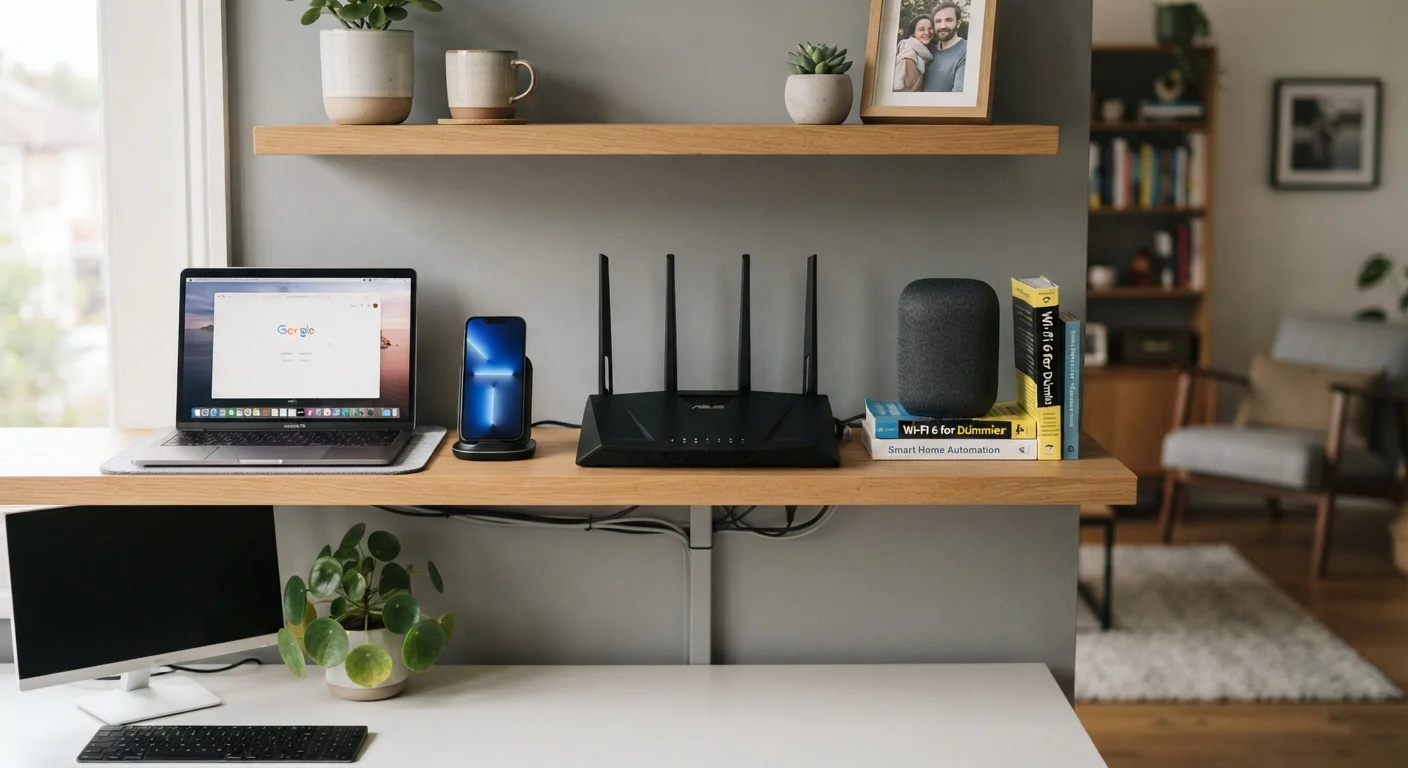
Your router broadcasts signal in all directions - putting it tucked in a corner, inside a cabinet, or near the floor wastes a large portion of that signal. Ideally, a router should sit in a central, elevated, open location to give equal coverage to as much of your home as possible.
Dense materials make things worse. Concrete walls, brick, metal appliances, and even large fish tanks absorb or reflect radio waves. Placing a router in the basement to hide the cables, or behind a TV in the entertainment center, are two of the most common placement mistakes that quietly rob you of range and speed.
A router in a corner wastes signal in directions where no one is using it.
Too many devices competing for bandwidth
Every device connected to your network - whether actively streaming or just sitting idle - claims a share of available bandwidth and router processing capacity. Smart TVs, phones, tablets, game consoles, smart speakers, security cameras, and thermostats all add up. Many of these devices run background tasks like automatic updates or cloud syncing that consume bandwidth without any visible activity.
Periodically reviewing your connected device list and removing devices that no longer need network access is a practical habit. Separating smart home devices onto a guest network can also reduce congestion on the network used for computers and phones. For guidance on setting up a guest network, it's a step worth taking.
Idle smart home devices still consume bandwidth through background updates and syncing.
Outdated router firmware
Router manufacturers release firmware updates to fix bugs, patch security vulnerabilities, and sometimes improve how the device manages wireless traffic. Running outdated firmware means your router may be operating with known performance issues that have already been resolved - you're just not receiving the fix.
Most modern routers allow you to check for and apply firmware updates directly through their admin interface or a companion app. Enabling automatic updates, where available, removes this from your mental checklist entirely. It's one of the lowest-effort maintenance steps available.
Firmware updates often fix bugs that directly affect how a router handles traffic.
Channel congestion from neighboring networks
Wi-Fi operates on shared radio frequencies divided into channels. In apartment buildings or densely populated neighborhoods, dozens of routers may be broadcasting on overlapping channels simultaneously, creating interference that degrades everyone's signal quality.
Most routers default to automatic channel selection, but this isn't always optimal. Using a free Wi-Fi analyzer app (available for both Android and iOS) lets you see which channels nearby networks are using. Manually switching to a less congested channel - particularly on the 2.4 GHz band, where channel options are limited - can produce a noticeable improvement. The 5 GHz band offers more non-overlapping channels, which is one reason it often performs better in crowded areas, though with a shorter range trade-off. Our article on Wi-Fi speed myths explains this band difference in practical terms.
In dense neighborhoods, neighboring routers sharing your channel can slow your connection.
An aging router that can't keep pace
Routers have a lifespan. Hardware that was capable five years ago may struggle with today's device loads, streaming resolutions, and bandwidth demands. An older router may also lack support for newer Wi-Fi standards that offer better efficiency and throughput - not just faster theoretical speeds, but smarter handling of multiple simultaneous connections.
If your router is more than five to seven years old and you've ruled out the other factors on this list, the hardware itself may be the limiting factor. Before replacing it, it's worth confirming the bottleneck is the router and not the modem or the plan from your provider.
Hardware age limits what even a well-placed, well-configured router can deliver.
Interference from household electronics
Microwave ovens, cordless phones, baby monitors, and Bluetooth devices all operate on frequencies that can interfere with the 2.4 GHz Wi-Fi band. This is often dismissed as a minor issue, but in practice, running a microwave near your router can cause temporary but significant signal disruption during use.
If your video calls drop at predictable times - when someone's heating lunch, for example - interference may be the cause. Switching affected devices to a 5 GHz connection, or relocating the router away from kitchen appliances, generally resolves this.
Microwave ovens can temporarily disrupt 2.4 GHz Wi-Fi signals during operation.
Small Changes, Real Improvements
None of these fixes require an expensive upgrade or a technician visit. Repositioning your router, trimming your device list, and spending five minutes on a firmware update can meaningfully change how your network performs day to day. The goal isn't a perfect signal everywhere - it's a reliable, consistent connection in the places that matter most to you.
Run a Speed Test at the Router First
Before troubleshooting anything else, connect a device directly to your router (via Ethernet cable if possible) and run a speed test. This tells you what speed your router is actually receiving from your modem. If that number is far below your plan's advertised speed, the issue may be upstream - with your modem, the line quality, or your provider - not your Wi-Fi setup at all.
If you've addressed the factors above and performance still disappoints, it may be worth exploring whether your connection type is the right fit for your needs. Our wired vs. wireless comparison breaks down the real trade-offs between Ethernet and Wi-Fi, and our home Wi-Fi security guide covers steps that protect performance as much as privacy.