

Key Takeaways
- Apps, cached data, and media files silently consume gigabytes without obvious warning.
- Many storage problems stem from a handful of avoidable habits, not the phone itself.
- Cloud backups and regular cache clearing are two of the most effective free fixes.
- Understanding what actually occupies storage helps you make smarter decisions going forward.
Why Your Phone Feels Like It's Always Full
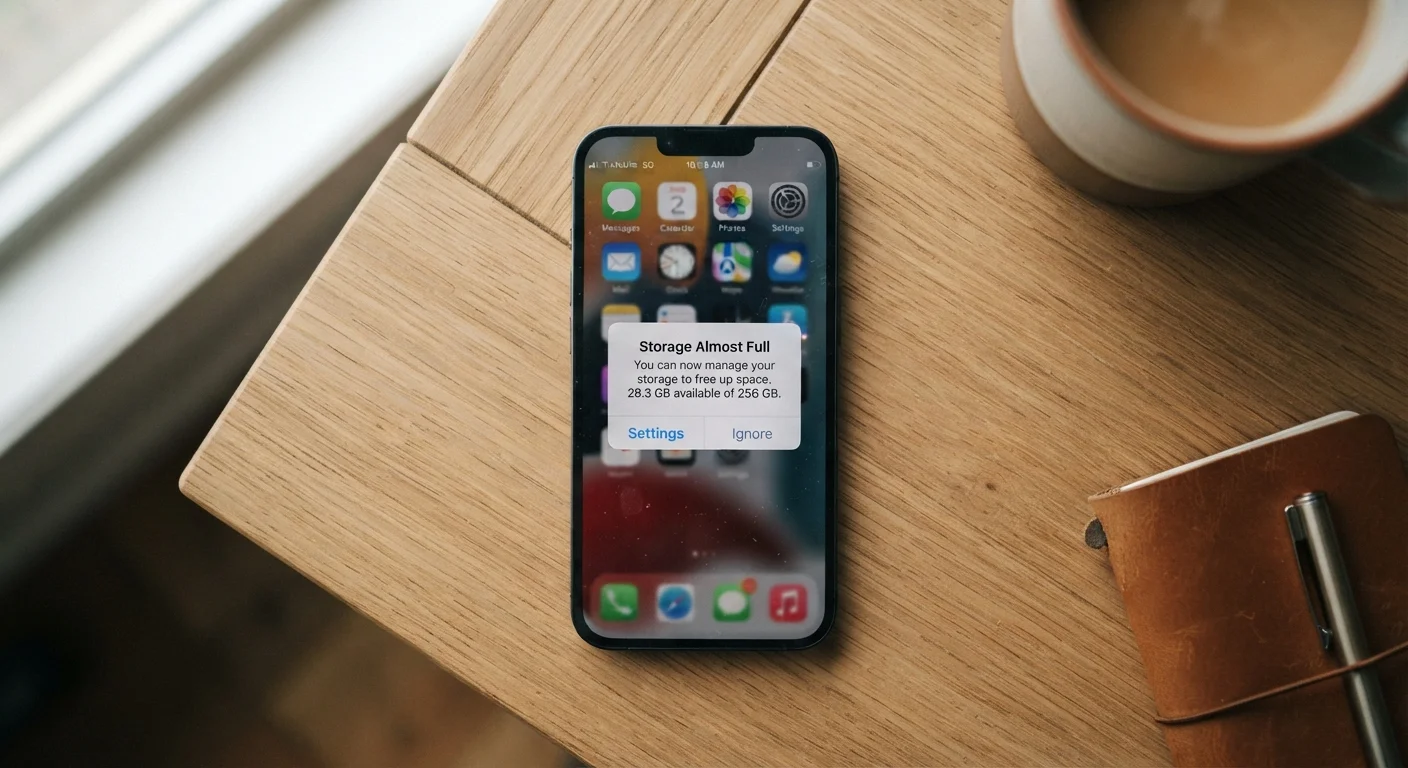
Most people assume they simply don't have enough storage. In reality, the culprit is usually a set of overlooked habits that steadily chip away at available space - often without any obvious sign. A 128 GB phone can feel cramped for the same reason a large closet feels packed: accumulation happens gradually, and the things taking up the most room aren't always the most visible. If you've ever wondered why your phone fills up faster than it logically should, the answer almost always lies in a few predictable patterns. Understanding those patterns is the first step toward stopping the cycle.
For a broader look at what different types of storage actually mean inside your devices, see our guide to RAM, ROM, and SSDs.
Never auditing which apps are actually installed and used.
Why it happens: Apps are easy to download on impulse and easy to forget. Over time, dozens of rarely-used apps accumulate, and each one brings its own stored data along for the ride.
Leaving the original full-resolution photos and videos on the device after backing them up to the cloud.
Why it happens: People assume that backing up means the cloud is a copy, but the originals stay on the phone by default unless you actively remove them. Photos and videos - especially 4K footage - are among the largest storage consumers on any device.
Ignoring messaging app media, particularly in group chats.
Why it happens: Every photo, video, voice note, and GIF sent through messaging apps is saved to the device by default in many cases. Group chats can push hundreds of files to your phone in a single week without you realizing it.
Never clearing app caches, especially for heavily used apps.
Why it happens: Cache clearing feels technical and unfamiliar to many users, and there's a common fear that it will delete important information. In practice, clearing a cache only removes temporary files the app can regenerate on its own.
Downloading large files or media without any plan to manage or delete them later.
Why it happens: It's easy to download a document, video, or podcast for a specific purpose and then forget about it entirely. Downloads folders can grow for years unnoticed.
The Hidden Culprits Eating Your Gigabytes
Beyond the mistakes above, a few categories of data deserve special attention because they're disproportionately large and disproportionately ignored.
~36%
Of phone storage used by photos and videos on average
Research from various device analytics firms consistently finds that media files - especially photos and video - represent the largest single category of storage use on consumer smartphones.
500+
Average apps downloaded per user over device lifetime
App analytics research suggests the average smartphone user installs several hundred apps over the life of a single device, many of which are forgotten rather than uninstalled.
App data and cache - Every app you use stores temporary files called a cache to speed up future loads. Over months, a single social media or streaming app can quietly accumulate hundreds of megabytes or even multiple gigabytes of cached data. On both Android and iPhone, you can review how much storage each app is using by going to Settings > General > iPhone Storage (iOS) or Settings > Apps (Android). Clearing an app's cache does not delete your account data or preferences - it only removes temporary files.
Duplicate and burst photos - Modern phones make it easy to take dozens of near-identical shots in a burst. Camera apps often save every frame. Even a modest photo library can hold hundreds of duplicates that serve no purpose other than filling space.
Downloaded content from streaming apps - Music, podcasts, and video apps frequently download content for offline use automatically. Unless you actively manage these downloads, they accumulate invisibly in the background.
Don't Delete Before You've Backed Up
Before clearing photos, app data, or files, always confirm that your backups are current and accessible. A backup that failed silently or exceeded your cloud storage quota means your data may not actually be saved. Open your cloud service and verify the last successful backup date before removing anything from your device.
If you're also planning to move your data to a new device, our walkthrough for transferring everything to a new phone explains how to do it without losing a thing.
Building Habits That Prevent the Problem
The most effective strategy isn't a one-time cleanup - it's building a small routine that prevents clutter from accumulating in the first place. A monthly check of your storage breakdown (available in your phone's settings) takes less than two minutes and tells you exactly where space is going. Enabling automatic cloud backup for photos - through your phone's built-in service or a third-party app - means you can safely delete local copies once they're confirmed backed up. Be aware, though, that free cloud storage tiers have limits; exceeding them typically requires a paid plan.
Staying on top of your phone's overall health, including storage habits, connects directly to how well your device performs over time. Poor storage management can indirectly affect performance and even contribute to device wear - see the habits that quietly shorten gadget lifespan for more on that connection.
Factory Reset Is a Last Resort - Not a Fix
Some guides suggest a factory reset to solve persistent storage problems. While this does wipe the device clean, it also erases everything on it - apps, settings, locally stored files, and data not backed up elsewhere. A factory reset should only be considered after all other options are exhausted, and only after a verified, complete backup. For most storage issues, the targeted fixes described here will be far more effective and far less disruptive.
Storage management isn't about being obsessive - it's about making sure your phone is ready when you actually need it, whether that's capturing a moment, running an important app, or keeping your data secure and well-organized.