

| RAM type | Volatile (clears on power-off) |
| Internal storage type | Non-volatile (persists without power) |
| Typical phone RAM range | 4 GB - 16 GB |
| Typical phone internal storage | 64 GB - 512 GB |
| SSD vs HDD moving parts | SSD: none; HDD: spinning platters + read head |
| Primary RAM function | Active working space for apps and processes |
Why the Word 'Memory' Causes So Much Confusion
Ask someone how much memory their phone has, and they might quote you their storage capacity - say, 256 GB. But that number describes something completely different from the memory the phone uses to run apps. Both are sometimes called "memory," which is why so many people feel lost when specs sheets mention RAM, ROM, internal storage, or SSD in the same breath.
The truth is these are distinct technologies with different jobs. Understanding what each one actually does can help you make smarter decisions about your devices - whether you're wondering why your laptop slows down or why your phone keeps warning you that space is running out.
| RAM type | Volatile (clears on power-off) |
| Internal storage type | Non-volatile (persists without power) |
| Typical phone RAM range | 4 GB - 16 GB |
| Typical phone internal storage | 64 GB - 512 GB |
| SSD vs HDD moving parts | SSD: none; HDD: spinning platters + read head |
| Primary RAM function | Active working space for apps and processes |
RAM: The Workbench, Not the Filing Cabinet
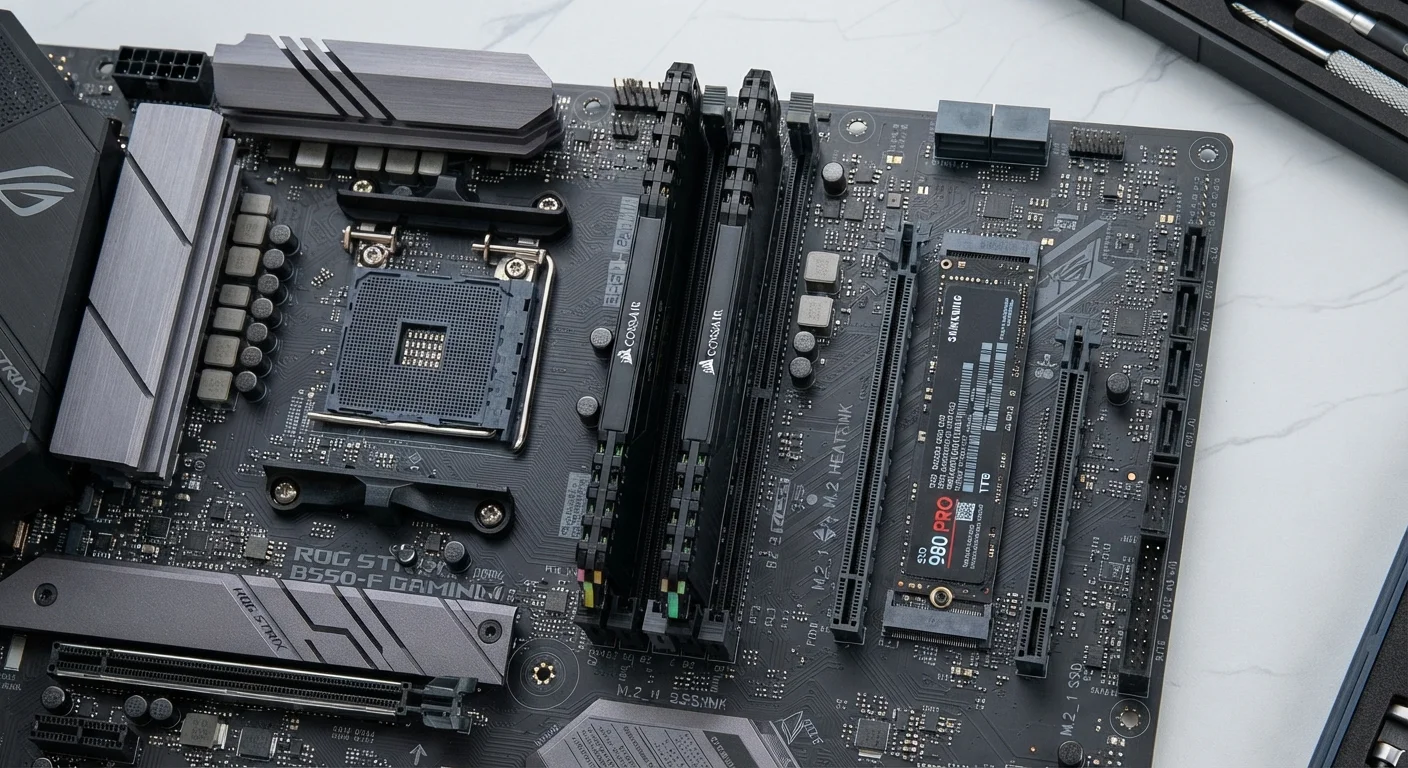
RAM (Random Access Memory) is your device's short-term working space. Think of it as a physical workbench: when you open an app, the operating system loads what it needs from long-term storage into RAM so the processor can reach it instantly. More RAM means a bigger workbench - more apps and processes can run simultaneously without the system slowing down.
The defining characteristic of RAM is that it's volatile: it holds data only while the device is powered on. The moment you restart or shut down, everything in RAM is cleared. That's why unsaved documents disappear in a crash - they existed only in RAM, never written to permanent storage.
On a typical modern smartphone, you might see 8-12 GB of RAM. A mid-range laptop might offer 16 GB. More is generally better for multitasking, but there's a point of diminishing returns depending on what you actually do with your device.
10-40×
Speed advantage of NVMe SSD over HDD
Sequential read speeds for modern NVMe SSDs commonly exceed 3,000 MB/s versus 80-160 MB/s for typical mechanical hard drives.
16 GB
Common baseline RAM in mid-range laptops
16 GB has become a common standard for mainstream laptops as operating systems and applications demand more working memory.
ROM and Internal Storage: The Filing Cabinet
ROM (Read-Only Memory) is a much older, narrower term. Historically it referred to chips that came pre-programmed at the factory - firmware, startup instructions, basic operating code - and couldn't be changed. It's non-volatile, meaning it holds its data with no power needed.
When people casually call a smartphone's built-in storage "ROM," they're using the term loosely and technically incorrectly. What modern phones actually use is flash memory (specifically a type called eMMC or UFS), which is both readable and writable - not truly read-only. Manufacturers and enthusiasts borrowed "ROM" as shorthand, but it's worth knowing the distinction.
Internal storage - whatever its exact type - is where your photos, apps, music, and operating system files permanently live. It persists when the device is powered off, which is what makes it storage rather than working memory. If you're constantly getting low-storage warnings on your phone, this is the bucket that's overflowing. See our guide to why phone storage fills up for practical ways to reclaim space.
RAM (Random Access Memory)
Short-term, volatile working memory that holds data the processor is actively using. It clears when the device powers off.
ROM (Read-Only Memory)
A non-volatile chip traditionally programmed at the factory with firmware or startup code. The term is often misused to describe a phone's internal storage.
SSD (Solid-State Drive)
A non-volatile storage device built on flash memory with no moving parts, used in laptops and desktops. Significantly faster and more durable than older spinning hard drives.
Volatile memory
Memory that requires power to retain its data. RAM is the most common example - it empties every time a device is shut down.
Flash memory
A type of non-volatile memory that retains data without power. It forms the basis of SSDs, USB drives, and modern smartphone internal storage.
Swapping / Paging
A process where the operating system uses storage space as a temporary substitute for RAM when RAM is full. It keeps the device functional but significantly reduces speed.
SSDs: The Modern Storage Standard
A Solid-State Drive (SSD) is also built on flash memory technology, but it's typically the storage format used in laptops, desktops, and external drives rather than the soldered-in chips inside a phone. Unlike older HDDs (Hard Disk Drives), which store data on spinning magnetic platters with a moving read/write head, an SSD has no moving parts. That makes it faster, quieter, more energy-efficient, and more resistant to physical shock.
When a computer boots up quickly or opens large files in seconds, a fast SSD is usually responsible. The speed difference between an HDD and a modern NVMe SSD can be dramatic - the kind of upgrade that can breathe new life into an older machine.
SSDs are also non-volatile like other forms of internal storage, so your files are safe when you power off. Managing your device's storage health over time - including temperature and usage habits - can also tie into overall device longevity. Our article on protecting your device's battery covers related habits worth knowing.
How They Work Together
These three types of memory don't compete - they collaborate. Here's a simple example using a laptop:
- You press the power button. The CPU reads startup instructions from ROM/firmware.
- The operating system loads from the SSD into RAM.
- You open a photo editor. The app and your image file are pulled from the SSD into RAM.
- You edit the photo in RAM (fast, temporary). When you hit save, changes are written back to the SSD (permanent).
If your device feels sluggish, it's often because RAM is maxed out and the system is forced to use slower storage as a substitute - a process called swapping or paging. If you're constantly deleting files to free up space, that's an SSD or internal storage issue, not a RAM issue. Knowing which is which tells you exactly what kind of upgrade or habit change would actually help.
"More Storage" and "More Memory" Are Different Upgrades
If your device slows down while multitasking, adding RAM (or buying a device with more RAM) addresses the real bottleneck. If you're running out of space for files, photos, and apps, you need more storage capacity - not more RAM. Mixing these up can lead to upgrades that don't actually solve your problem. Check task manager or system settings on your device to see which resource is actually under strain.