

Key Takeaways
- Browsers ship with default settings that favor convenience and data sharing over user privacy.
- Disabling third-party cookies and limiting tracking can reduce targeted advertising exposure.
- Enabling HTTPS-only mode protects your data in transit on unfamiliar websites.
- Reviewing permissions for location, camera, and microphone access limits unnecessary data collection.
- These changes take minutes and require no technical expertise to complete.
What you will need
Why Browser Defaults Aren't Set Up With Your Privacy in Mind
Web browsers are built to be convenient out of the box. That means many privacy-protective features - cookie blocking, HTTPS enforcement, permission controls - are either turned off by default or set to their least restrictive option. This isn't necessarily malicious, but it does mean the default experience tends to benefit advertisers and data brokers more than individual users.
The good news is that changing these defaults is straightforward and doesn't require any technical background. If you're just getting started thinking about your digital footprint, the plain-English starting point for online privacy is a useful companion to this guide.
What you will need
The adjustments below apply broadly across the major browsers used in the U.S. - Chrome, Firefox, Safari, and Edge - though the exact menu names may vary slightly. When in doubt, use your browser's built-in search bar within settings to find the specific option by name.
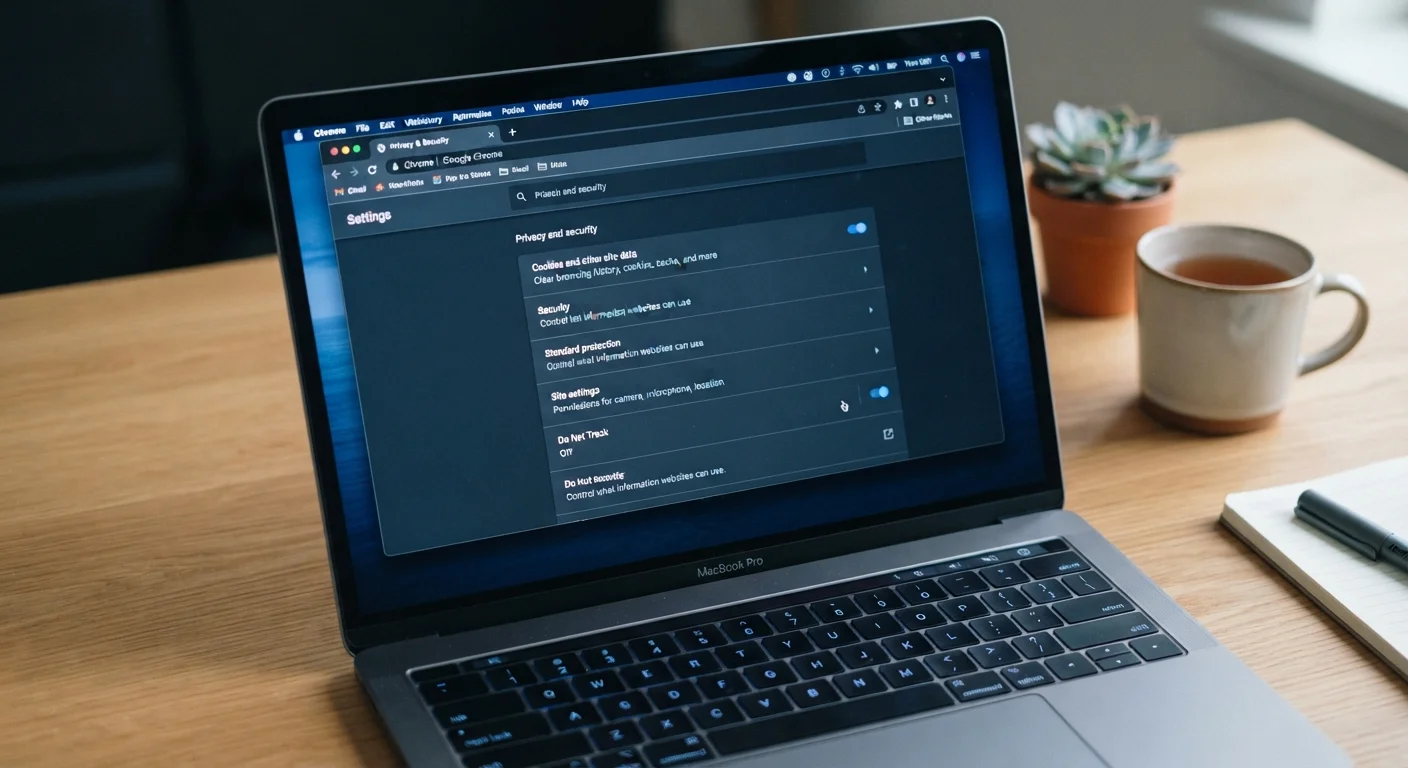
Web Browser Settings Menu
The built-in settings panel where all privacy and security options are configured.
Browser Privacy Dashboard
Some browsers offer a dedicated privacy or security dashboard that consolidates key options in one place.
Step-by-Step: Adjusting the Settings That Actually Matter
These six changes cover the most impactful privacy adjustments available in any mainstream browser. Work through them in order or jump to whichever feels most relevant to your situation.
Open your browser's privacy or security settings
In most browsers, click the menu icon (often three dots or lines) in the top-right corner, then select Settings. Look for a section labeled Privacy, Security, or Privacy and Security. On mobile, this is usually found under the same menu or within the app's general settings.
Block or limit third-party cookies
Third-party cookies are small files placed on your device by websites other than the one you're visiting - often advertisers tracking your activity across the web. Look for a Cookies or Tracking setting and set it to block third-party cookies. Most browsers now offer this option; some label it as "Enhanced" or "Strict" tracking protection.
Enable HTTPS-only mode
HTTPS (HyperText Transfer Protocol Secure) encrypts the connection between your browser and the website you're visiting. Most browsers offer an option to force HTTPS whenever possible. In settings, look for HTTPS-Only Mode or a similar toggle under Security. When enabled, your browser will warn you before loading any unencrypted (HTTP) page.
Turn off or limit location, camera, and microphone permissions
Browsers can grant websites access to your device's location, camera, and microphone - often without you realizing it was ever approved. Navigate to Site Permissions (or Site Settings) within your privacy settings. Review which sites have been granted access and revoke any you don't actively use or recognize. Set the default for each permission type to Ask before accessing rather than allowing it automatically.
Disable autofill for passwords and payment info - or audit what's stored
Browsers often store passwords, addresses, and payment card details for convenience. If your device is ever accessed by someone else, this data may be exposed. Go to Autofill or Passwords in settings. Review what's saved, delete anything you no longer use, and consider whether a dedicated password manager might serve you better for sensitive credentials.
Review and clear your browsing data regularly
Browsing history, cached files, and stored cookies accumulate over time. Clearing them periodically reduces the amount of data that could be exposed in a breach or accessed by someone using your device. Find this option under Clear Browsing Data or History in settings. You can choose what to delete - cookies, cache, history - and how far back to go.
No Browser Setting Is a Complete Shield
Privacy settings reduce your exposure but don't make you invisible online. They won't protect against phishing attacks, malware, or data breaches at websites you use. Think of these settings as one layer in a broader strategy, not a single solution.
If you share a device with children, these settings are worth configuring with extra care. Our article on protecting children online covers additional layers of protection that go beyond browser settings alone.
These Settings Carry Over to New Habits
Adjusting browser privacy settings is a great first step, but it works best as part of a broader approach to online safety. Consider pairing these changes with stronger home network practices - see our guide to securing your home network for steps that complement what you've done here.
Your Browser Updates Matter Too
Privacy and security settings are only as effective as the browser running them. An outdated browser may have unpatched vulnerabilities that bypass even well-configured settings. Always keep your browser updated to the latest available version - most browsers do this automatically, but it's worth confirming in your settings.
For a broader look at your device's security posture, cell phone security habits that actually protect your data covers the mobile side of the equation in practical detail.